Administration
Manage passwords, database, backups, updates, and system maintenance.
Password Management
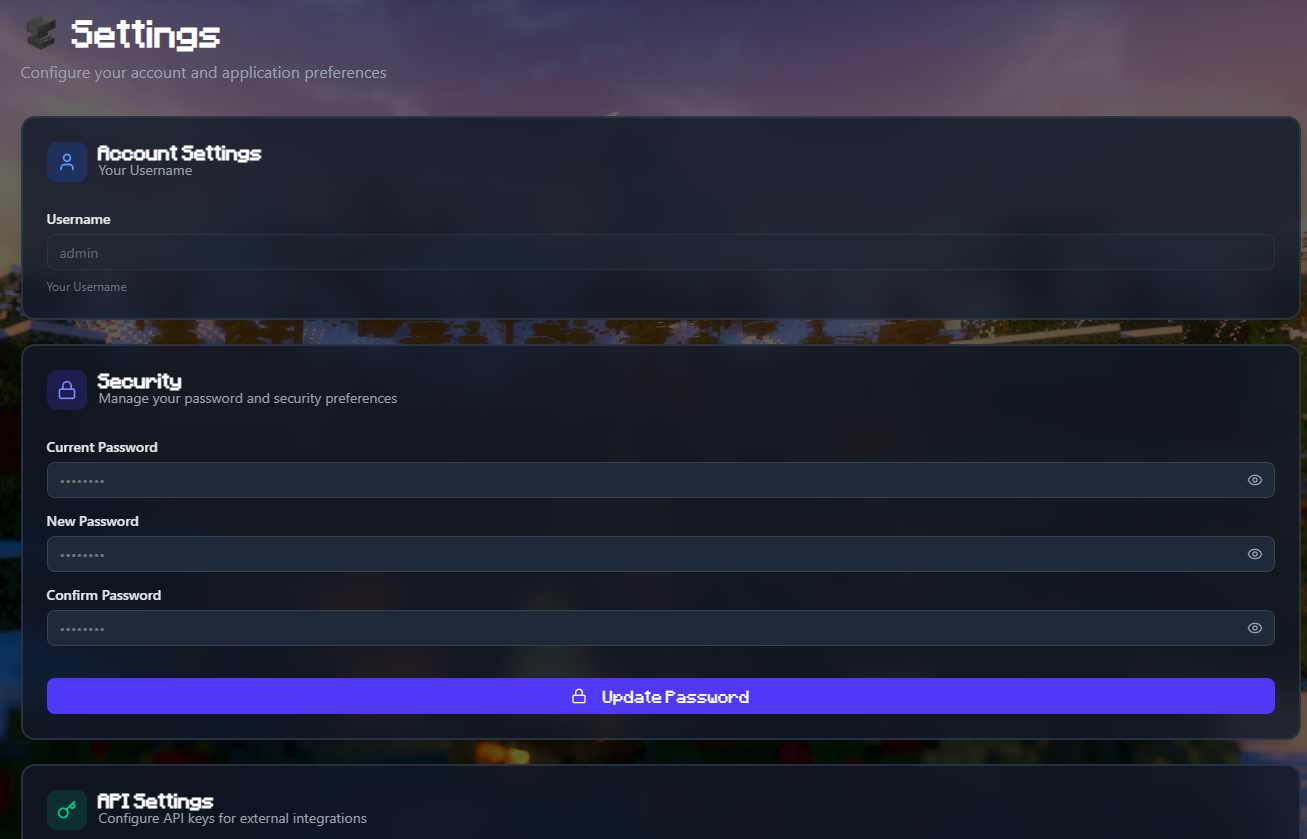
Change Admin Password
From UI
- Click on your profile (admin) in the top right
- Select "Change Password"
- Enter current password
- Enter new password
- Confirm new password
- Click "Save"
The password is hashed with bcrypt and stored securely in the database.
From Environment Variable
WARNING
This method only works for the FIRST login. After that, use the UI method above.
Edit docker-compose.yml:
environment:
- CLIENT_PASSWORD=your_new_passwordRestart:
docker compose restartForgot Your Password?
If you've forgotten your password and can't access the UI:
Option 1: Reset via environment variable (doesn't work after first login)
If you've never changed your password through the UI, you can use the environment variable method above.
Option 2: Reset the database
WARNING
This will delete ALL your servers and configuration!
docker compose down
rm -f data/minepanel.db
docker compose up -dYou'll be able to log in with the default credentials (admin/admin) or your CLIENT_PASSWORD environment variable.
Option 3: Manual database update (Advanced)
If you know SQL and want to keep your servers:
# Stop minepanel
docker compose stop minepanel

# Install sqlite3 if needed
sudo apt install sqlite3

# Connect to database
sqlite3 data/minepanel.db

# Generate new password hash (use bcrypt online tool or Node.js)
# Then update:
UPDATE users SET password = 'your_bcrypt_hash_here' WHERE username = 'admin';

# Exit sqlite
.exit

# Start minepanel
docker compose start minepanelTo generate a bcrypt hash:
// Using Node.js
const bcrypt = require('bcrypt');
const hash = bcrypt.hashSync('your_new_password', 10);
console.log(hash);Database Management
Database Location
Minepanel uses SQLite and stores its database at:
./data/minepanel.dbThis file contains:
- User credentials
- Server configurations
- Settings
- API keys
Backup Database
Manual backup:
cp data/minepanel.db data/minepanel.db.backupAutomated backup script:
#!/bin/bash
# backup-minepanel.sh

DATE=$(date +%Y%m%d_%H%M%S)
BACKUP_DIR="./backups/minepanel"
mkdir -p $BACKUP_DIR

# Backup database
cp data/minepanel.db "$BACKUP_DIR/minepanel_$DATE.db"

# Keep only last 7 days
find $BACKUP_DIR -name "minepanel_*.db" -mtime +7 -delete

echo "Backup completed: minepanel_$DATE.db"Make it executable and add to cron:
chmod +x backup-minepanel.sh

# Add to crontab (daily at 2 AM)
crontab -e
0 2 * * * /path/to/backup-minepanel.shRestore Database
# Stop minepanel
docker compose down

# Restore from backup
cp data/minepanel.db.backup data/minepanel.db

# Start minepanel
docker compose up -dDatabase Inspection
To view database contents:
sqlite3 data/minepanel.db

# List tables
.tables

# View users
SELECT * FROM users;

# View servers
SELECT id, serverName, serverType, port, active FROM servers;

# Exit
.exitReset Database
WARNING
This will delete ALL your servers, users, and configuration!
docker compose down
rm -f data/minepanel.db
docker compose up -dAfter reset, log in with default credentials (admin/admin).
Server Backups
Automatic Backups
Minepanel supports automatic backups for individual Minecraft servers. Configure in the server settings:
Backup Methods:
tar- Traditional tar archives (default)rsync- Incremental backupsrestic- Encrypted, deduplicated backupsrclone- Cloud storage backups
Example configuration:
services:
  mc:
    # ... server config ...

  backup:
    image: itzg/mc-backup
    container_name: my-server-backup
    depends_on:
      - mc
    environment:
      BACKUP_METHOD: tar
      BACKUP_INTERVAL: 24h
      INITIAL_DELAY: 2m
      BACKUP_NAME: world
      DEST_DIR: /backups
      PRUNE_BACKUPS_DAYS: 7
      RCON_HOST: mc
      RCON_PORT: 25575
      RCON_PASSWORD: your_rcon_password
    volumes:
      - ./mc-data:/data:ro
- ./backups:/backupsManual Backup
From the Minepanel UI:
- Go to server details
- Click "Backup Now"
- Wait for completion
- Download from the Files tab
Or manually:
# Backup a specific server
cd servers/my-server
tar -czf ../my-server-backup-$(date +%Y%m%d).tar.gz mc-data/Restore from Backup
- Stop the server
- Extract backup to
mc-datafolder - Start the server
docker compose stop mc
tar -xzf backup.tar.gz -C servers/my-server/
docker compose start mcUpdates
Update Minepanel
Using Docker Compose:
# Pull latest image
docker compose pull

# Restart with new image
docker compose up -dCheck for updates:
# Check current version
docker images ketbom/minepanel

# Check latest version on Docker Hub
https://hub.docker.com/r/ketbom/minepanel/tagsUpdate Minecraft Server
Minecraft servers auto-update when restarted (unless you specified a specific version).
To update manually:
- Stop server
- Change VERSION environment variable
- Restart server
Rollback
If an update causes issues:
# Use specific version
docker compose down
docker tag ketbom/minepanel:latest ketbom/minepanel:backup
docker pull ketbom/minepanel:v1.0.0  # previous version
docker compose up -dResource Management
Check Resource Usage
# View container stats
docker stats

# View specific container
docker stats minepanel

# Check disk usage
docker system dfClean Up
# Remove unused images
docker image prune -a

# Remove unused volumes
docker volume prune

# Complete cleanup
docker system prune -a --volumesLogs Management
View logs:
# All services
docker compose logs

# Specific service
docker compose logs minepanel

# Follow logs
docker compose logs -f

# Last 100 lines
docker compose logs --tail 100Limit log size:
Add to docker-compose.yml:
services:
  minepanel:
    logging:
      driver: "json-file"
      options:
        max-size: "10m"
max-file: "3"System Defaults
Reset to Defaults
To reset Minepanel to default settings (keeps servers):
# Stop containers
docker compose down

# Remove only configuration
rm -f data/minepanel.db

# Restart
docker compose up -dComplete Reset
DANGER
This removes EVERYTHING including all servers!
docker compose down
rm -rf data/
rm -rf servers/
docker compose up -dMaintenance Mode
To perform maintenance:
# Stop all services
docker compose stop

# Perform maintenance (backups, updates, etc.)
# ...

# Start services
docker compose startOr stop specific services:
# Stop only Minepanel (keeps servers running)
docker compose stop minepanel

# Restart
docker compose start minepanelHealth Checks
Container Health
# Check container status
docker compose ps

# Inspect container
docker inspect minepanel

# Check logs for errors
docker compose logs minepanel | grep -i errorService Health
# Test API endpoint
curl http://localhost:8091/api/health

# Test frontend
curl http://localhost:3000Best Practices
- Regular Backups - Backup database and server data regularly
- Update Regularly - Keep Minepanel and servers up to date
- Monitor Resources - Watch disk space and memory usage
- Secure Passwords - Change default passwords immediately
- Use HTTPS - In production, always use SSL/TLS
- Document Changes - Keep notes of custom configurations
- Test Restores - Periodically test backup restoration
Next Steps
- Configure Networking & Remote Access
- Set up Server Types
- Review Troubleshooting Guide